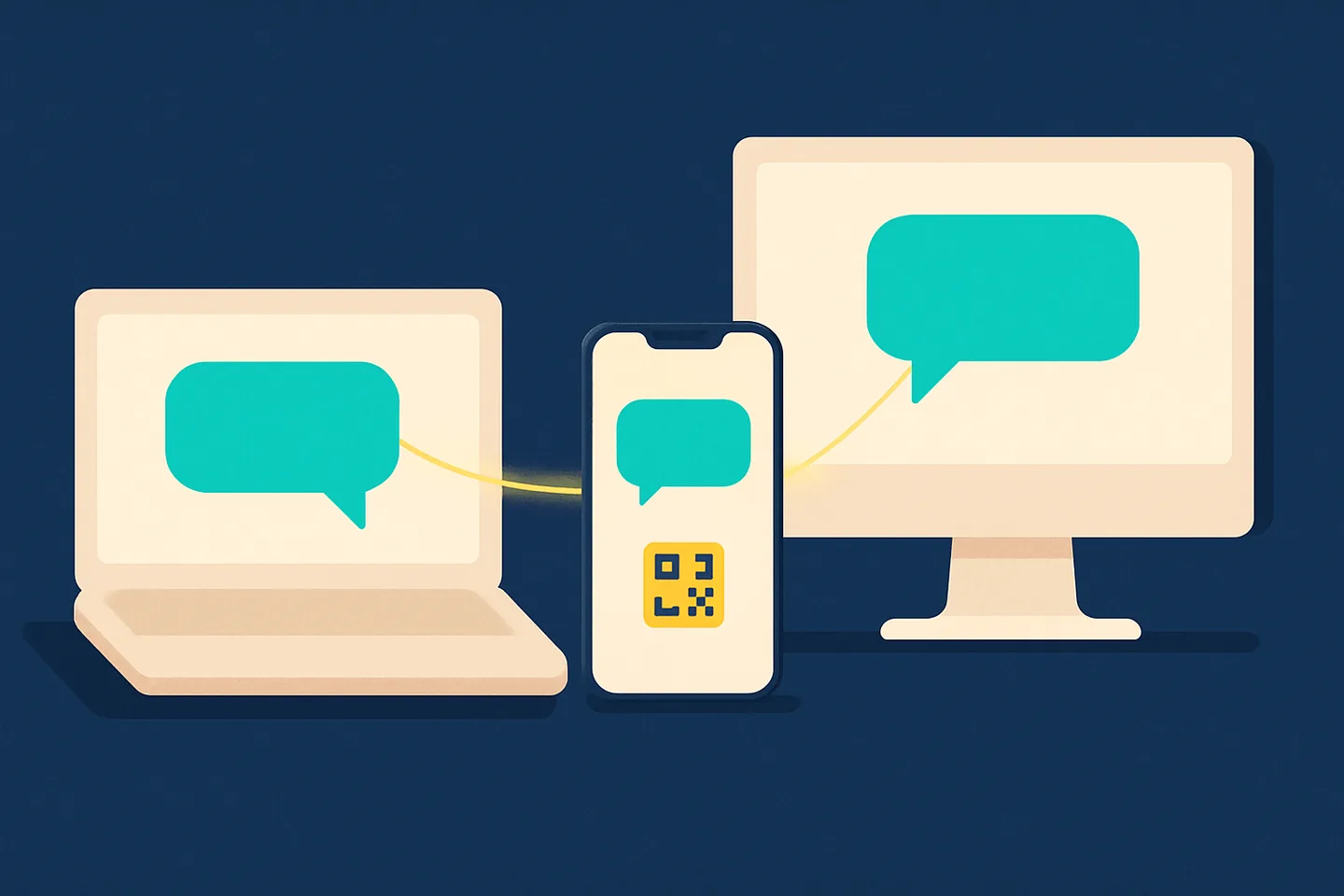
The WhatsApp desktop app is how most people who work at a computer actually use WhatsApp, and it has changed more in the last year than in the five before it. The Windows version stopped being a native Windows program and became a web-based app. The Mac version went its own way. And underneath both, the linked-device system that lets a computer use your WhatsApp account has rules most people only discover when something logs out.
This guide explains what the desktop app is now, how to install and link it, what the limits are, and the point at which a business outgrows it.
What changed with the WhatsApp desktop app
For several years WhatsApp shipped a native Windows app, built specifically for Windows, that was noticeably faster and lighter than the browser version. WhatsApp has since replaced it with a web-based app: the Windows download is now a container that displays the same WhatsApp Web interface you would get in a browser. Technology press covering the beta reported the reason plainly. One codebase is cheaper to maintain than two, and features such as Channels, Status and Communities reach the desktop sooner when the desktop is the web.
The trade-offs were reported just as plainly: more memory use than the native app, and some conveniences, such as certain keyboard shortcuts and native notifications behaviour, working differently. If your Windows app suddenly looks and behaves exactly like WhatsApp Web, this is why. Nothing is wrong with your installation.
On the Mac, WhatsApp continues to offer a separate Mac app through the Mac App Store and its own download page. It links to your account the same way.
How to install it and link your account
- 1
Download from an official source
Use the Microsoft Store on Windows, the Mac App Store on a Mac, or whatsapp.com/download. Avoid third-party download sites; a messaging app is a prime target for tampered installers.
- 2
Open the app and find the QR code
The desktop app shows a QR code on first launch, exactly like WhatsApp Web.
- 3
On your phone, open Linked devices
In WhatsApp, open Settings, then Linked devices, then Link a device. On Android the same option is in the three-dot menu.
- 4
Scan the code
Your chats sync to the computer, end-to-end encrypted. Recent history arrives first and older messages fill in behind it.
- 5
Or link with your phone number
If the camera is not convenient, choose "Link with phone number" on the computer and enter the code it shows on your phone.
How linked devices really work
The desktop app is not a second WhatsApp account and it is not a mirror of your phone. It is a linked device: an additional, independent connection to the same account. That design explains almost every behaviour people find surprising.
- Your phone does not need to be online. Since WhatsApp moved to its multi-device design, a linked computer sends and receives on its own connection.
- You can link up to four devices to one account, in addition to the phone. Computers, tablets and a second phone all count toward the four.
- If the phone goes unused for 14 days, WhatsApp logs out every linked device. A desktop app that "randomly" signed out after a holiday is usually this.
- Messages remain end-to-end encrypted on linked devices. Each device holds its own keys.
- Some things still happen only on the phone, such as changing certain account settings. The phone remains the primary device.
- You can see and remove every linked device from Settings, then Linked devices, on the phone. If a device you do not recognise is listed, log it out.
Related: WhatsApp Web for business: setup, limits and security
Desktop app or WhatsApp Web?
On Windows the honest answer today is that they are the same product in different windows. The desktop app gives you a taskbar icon, its own window and notifications without keeping a browser tab open; WhatsApp Web gives you nothing to install and works on any computer, including one you do not own. On a Mac the separate app still has a more native feel, with system notifications and its own window management.
Both count as a linked device, both work for a WhatsApp Business app account, and both share the limits in the next section.
Where the desktop app runs out for a business
For one person answering their own number, the desktop app is all you need. The trouble starts the day a second person has to answer the same number, because the desktop app has no concept of a team.
| What a team needs | WhatsApp desktop app | A shared team inbox |
|---|---|---|
| More than a handful of people on one number | Four linked devices, total | Every teammate signs in as themselves |
| Knowing who replied | All replies look the same | Each sent message carries the teammate’s name |
| Knowing someone is already answering | No signal at all | Live "viewing" and "replying" indicators |
| Limiting what a junior or a contractor sees | Everyone sees every chat | Roles, and access to only part of the inbox |
| Removing someone who leaves | Log out their device and hope it was the only one | Remove the member; access ends immediately |
| Notes, tasks and reminders on a conversation | None | Built in, visible to the team and never to the customer |
| Working from any computer | Install and link each one | Open a browser and sign in |
The middle column is not a criticism of WhatsApp. The desktop app is built for a person, not a team, and it is good at what it is for.
What Spun does instead
Spun connects to your existing number in the same way the desktop app does: you scan one QR code and Spun becomes a linked device. The difference is what sits behind that one link. Instead of one person at one computer, the whole team signs in to Spun in a browser, each with their own account and their own role, and works the same conversations.
Every teammate sees who is viewing or replying to a chat as it happens. Every sent message is marked, inside Spun, with the name of the person who wrote it, while the customer sees only your business number. You choose whether a member gets the whole inbox or only the conversations that match a filter, and removing a member ends their access immediately. Members are unlimited on every paid plan, with no per-seat fee, and the four-device limit stops being your team-size limit because the team shares one link.
One thing to know, because it is the same rule that governs the desktop app: Spun is a linked device, so the phone that owns the number still needs to be used from time to time, and WhatsApp can log out any linked session. Spun tells you in the inbox when the connection needs attention.
Related: Shared Team Inbox: roles, sharing and limits · How Spun connects to WhatsApp